
Your "Redacted" PDF Probably Still Leaks the Text
Quick Summary:
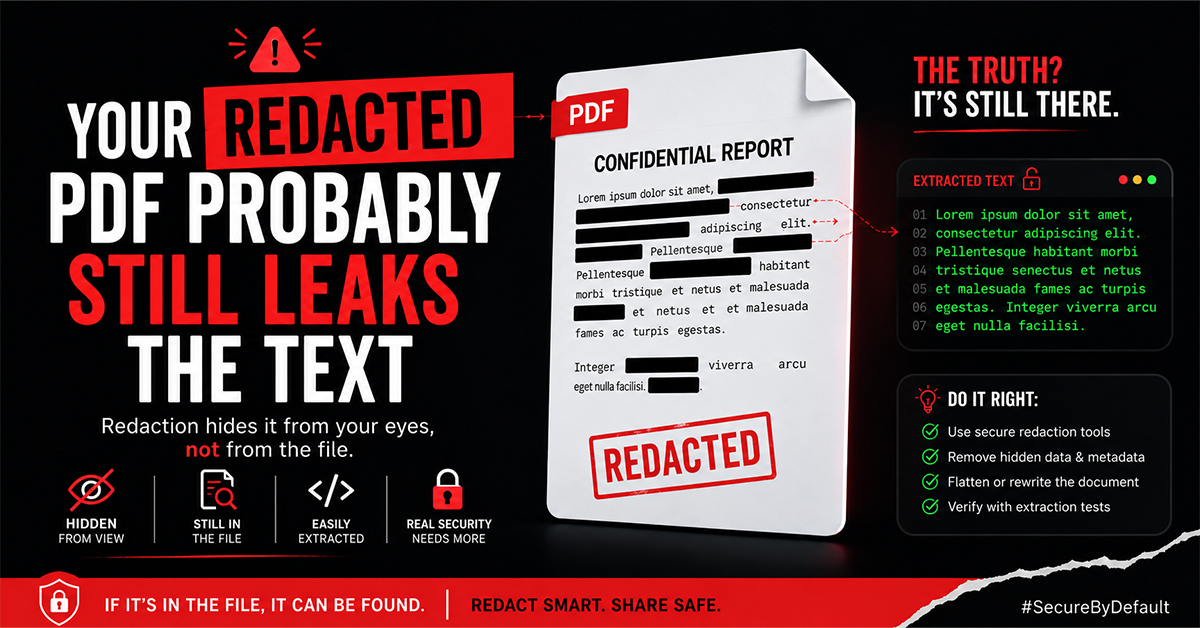
Black boxes do not permanently remove sensitive information; they only hide it visually, while the original text often remains embedded in the PDF.
Common methods like drawing shapes, changing text color, or using annotations are not true redaction and can still expose confidential data through copy-paste or search.
Proper PDF redaction permanently removes the underlying text, images, metadata, and hidden content, making the information unrecoverable.
Always verify a redacted PDF by testing copy-paste and search before sharing sensitive documents.
For maximum privacy, choose a PDF redaction tool that processes files locally in your browser instead of uploading them to external servers.
Compress the final redacted PDF locally before sharing to maintain privacy while reducing file size
Black boxes and deleted text are not the same as redaction. Here is what actually happens inside the file and how to remove sensitive data for good.
A lawyer covers a client's bank details with neat black rectangles, exports the PDF, and files it with the court. A reporter opens the document, selects the page, presses copy, and pastes it into a blank note. Every digit is sitting right there.
This is not a rare case. Court filings, corporate disclosures, and government reports have all leaked sensitive data this exact way. The cause is almost always the same: a misunderstanding about how a PDF stores what you see on the screen.
A PDF Is Two Layers, Not One
When you look at a PDF, you are looking at a visible surface. Underneath that picture there is a separate content layer: the actual text objects, their characters, and the coordinates where each one is drawn.
Those two layers are completely independent. The text you read is not "baked into" the image. It is stored as real, machine-readable data. It can be pulled back out by any reader.
That single fact is why most redaction goes wrong.

Why Does Covered Or Deleted Text Still Show Up?
Because the common ways of hiding text only touch the visual layer. The content layer stays intact.
Here are the methods that quietly fail:
Drawing A Black Rectangle Over The Text
This adds a shape on top. It is a sticker, not an eraser. The characters underneath are untouched, so a simple copy and paste lifts them straight out from behind the box.
Changing The Text Color To White
The text becomes invisible against the page, but it is still there. Select the area, and it highlights. Copy it and it pastes.
Highlighting in Black or Using an Annotation Marker
Same problem. Annotations sit above the content. They hide nothing from a machine.
Hitting Delete in a Basic Editor
This can remove text from view while leaving traces in the file. PDFs often save incrementally, appending each change rather than rewriting the whole document, so older content can linger in the file's history unless it is properly cleaned out.
And then there is metadata: author name, the software used, timestamps, and sometimes fragments of the original text. People scrub the visible page and forget the file's hidden properties entirely.
How Do You Check If A PDF Is Actually Redacted?
You can test it in about thirty seconds before you ever send the file.
Open the finished PDF.
Try to select the text sitting over a blacked-out area, then copy and paste it somewhere.
Use find (Ctrl+F or Cmd+F) to search for a name, number, or word you thought you removed.
If anything pastes, or the search finds a match, your redaction is fake. The data is still in the file.
What Real Redaction Actually Does
Actual redaction permanently removes the underlying text as well as image data from the content layer in the area you marked. Thereafter, it rewrites the file so nothing is recoverable. The black mark becomes the only thing left, because the information beneath it is genuinely eliminated.
It also flattens the document and strips the metadata, so there is no hidden history to recover from.
In case you are searching for the best free PDF editor online, this is the one capability to pay attention to: redaction that erases the underlying data, not a tool that simply paints a box on top.
The difference in one line: a black box just covers; redaction deletes permanently.
How To Redact A PDF Properly
Use a tool that does content removal, not annotation. This is the whole game.
Mark every region that identifies someone or something: text, signatures, faces, logos, account numbers.
Apply the redaction so it strips the underlying objects, not just paints over them.
Flatten and re-save the document.
Scrub the metadata before exporting.
Run the copy-paste and search test on the final file to confirm.

One More Risk People Miss
There is a quieter problem with redacting sensitive documents online. To redact something with most web tools, you first have to upload your file to their server. So the document full of secrets you are trying to protect gets sent off your device before it is cleaned.
This is exactly why to build redaction into The PDF Edit, a free PDF editor online that does true content removal and runs in your browser, so the file never leaves your device in the first place.
Before You Send the Redacted File
A cleaned file, especially a scanned one, can be too large to email. Rather than uploading it somewhere new and undoing the privacy you just protected, run it through an online PDF compression tool first.
A good PDF size reducer online does this the same way redaction should, locally in your browser, so the document stays private from start to finish.
The Takeaway
A black box is a visual. Redaction is a permanent deletion. They look identical on screen and behave completely differently the moment someone copies the page.
Before you send anything sensitive, run the thirty-second test. It is a small habit that prevents a permanent mistake.
Related PDF Tools
Ready to Try These Tools?
All PDF Converter tools are free, require no signup, and process files directly in your browser for maximum privacy.